Add a machine
A machine is a computer with Towery installed and connected to the workspace: agents start and stop on it, and code and files are read and written on it. Before you connect one, check two things:
Requirements
- Operating system: macOS (Apple silicon; Intel Macs aren't supported yet), Windows 10 / 11 (64-bit), or Linux (x64 or arm64, Ubuntu 22.04, Debian 12, or later).
- A runtime and an account on the computer: install and sign in to at least one runtime on this computer first. The work agents do uses the account and quota signed in on this computer: Claude Code, Codex, Antigravity CLI, OpenCode, Kilo Code, pi, omp (Oh My Pi), or DeepSeek Harness.
Install in two steps and check the tools
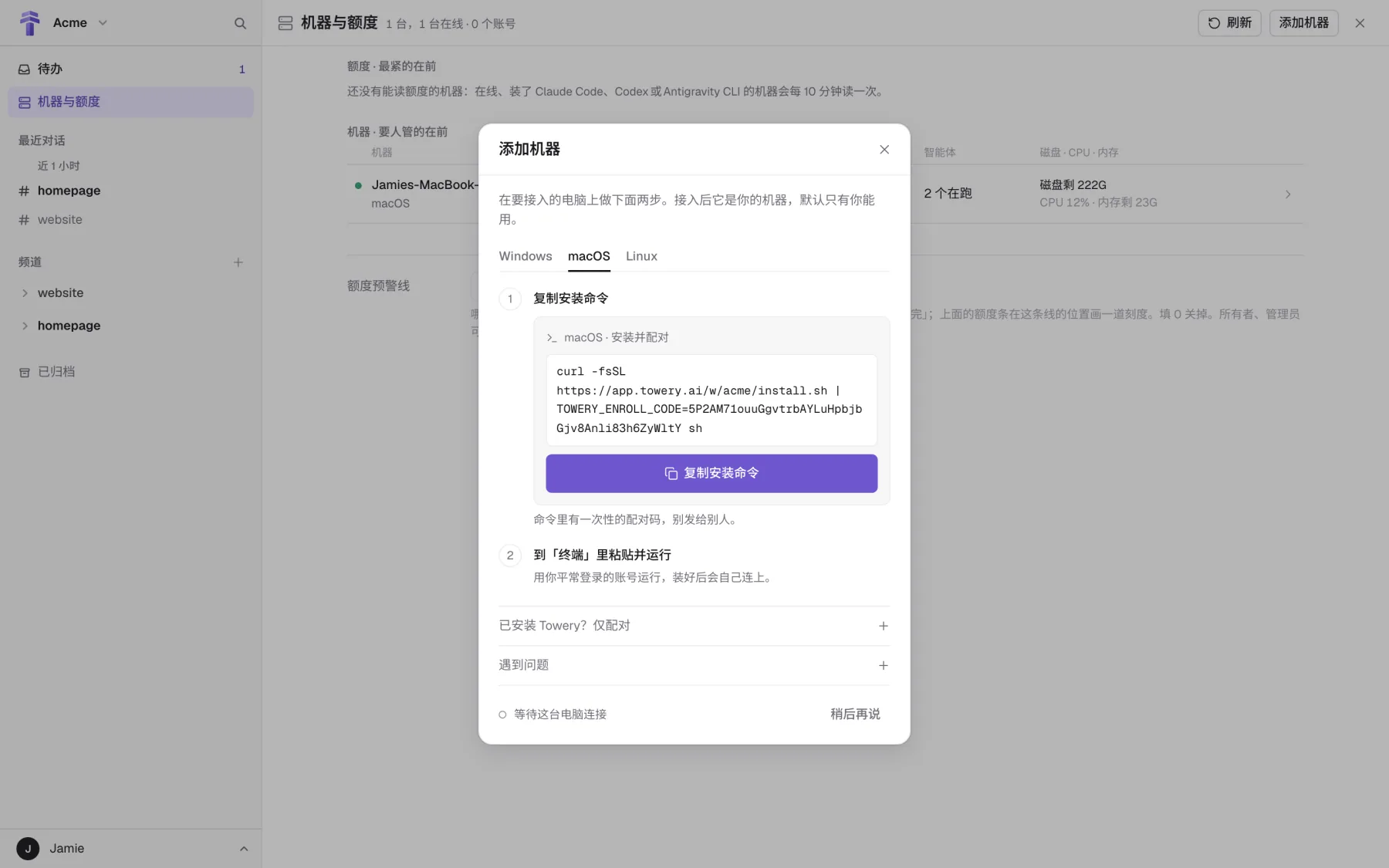
Open Machines & quota › Add machine in the left sidebar, switch to the tab for your system, and do two steps: ① click Copy install command; ② open Terminal on macOS, a terminal or SSH on Linux, or PowerShell on Windows, and paste and run it as your everyday user (on Linux, don't add sudo). The script installs the Towery background service, pairs the machine, and sets it to start automatically.
Connect a computer in two steps: copy the command in Machines & quota › Add machine, then paste and run it in a terminal or PowerShell on the computer as your everyday user.
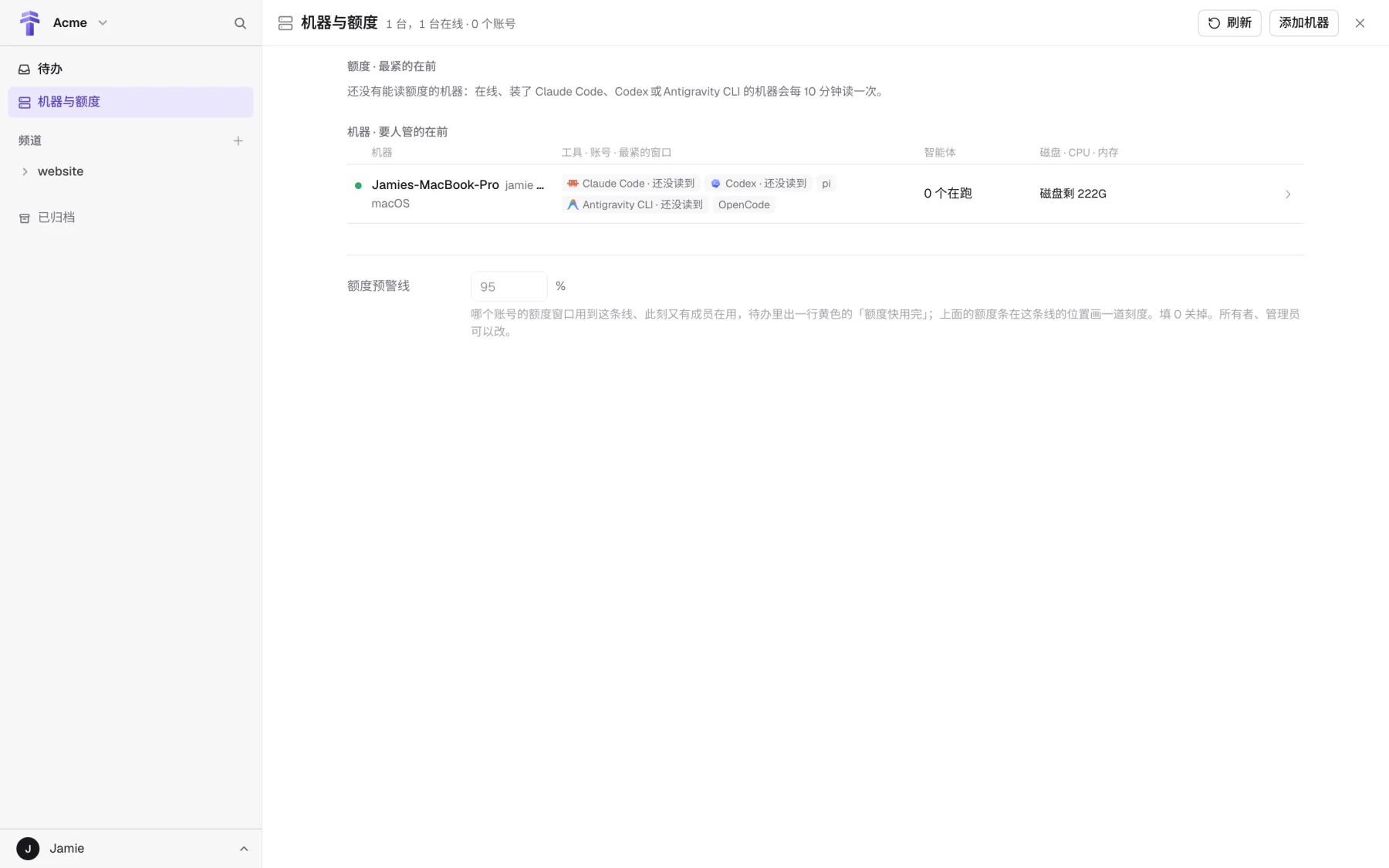
Check that it's online: once pairing finishes, the machine shows a green dot in the Machines & quota list.
Check the tools and who can use it: open the machine. Tools at the top lists the runtimes found and their versions, and Owner and who can use it below sets who can start agents on it.
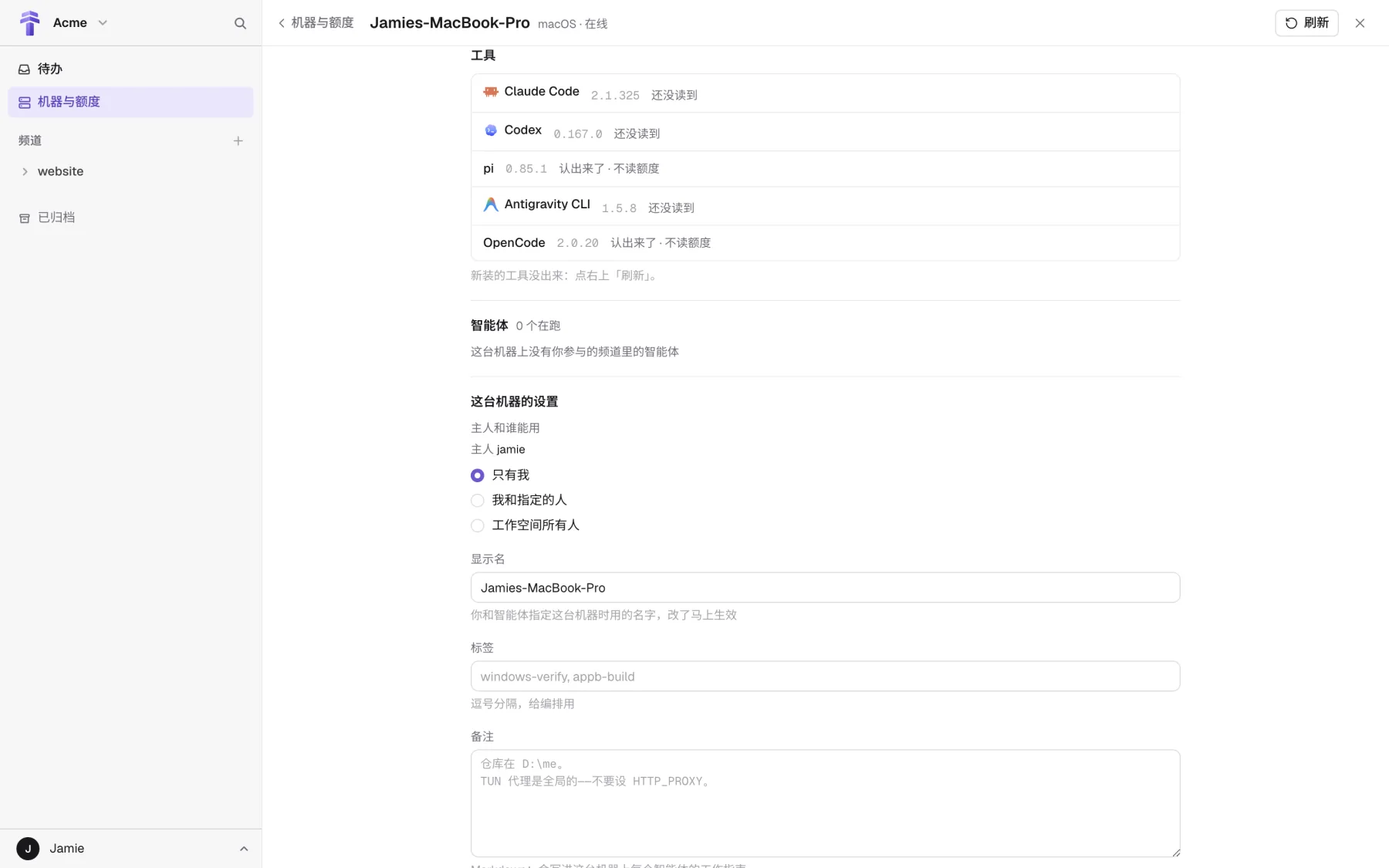
Owner and who can use it
Whoever connects a computer with a pairing code is the machine's owner. Settings for this machine › Owner and who can use it on the machine's page has three choices:
- Only me (the default): only you can create agents on this computer, change their settings, or take over their terminal.
- Me and people I choose / Everyone in the workspace: lets the coworkers you pick, or everyone, create and use agents on your computer.
You can't create agents on a machine someone else hasn't opened to you. But as long as an agent on that machine is in a channel you share, you can still @ it there and work with it.
Troubleshooting
| What happens | What to do |
|---|---|
| The pairing code expired or is rejected | A pairing code works once and expires after 15 minutes. If the dialog is open when it expires, it gets a new one automatically. To get a new one right away, open Having trouble? at the bottom of the dialog and click Get a new one now, then copy the command again and run it. |
| Don't paste the command into a channel | The install command contains a one-time pairing code. Don't send the command or the code to a Towery channel: agents in the channel can read it. |
| On Windows, the last step says access is denied | Some Windows setups don't let a regular user register a sign-in startup task (the error is PermissionDenied). Right-click PowerShell, choose Run as administrator, and run the same command again. You don't need a new pairing code. |
| This computer was connected before | To reinstall or replace its credential, don't use a new code from Add machine. In Machines & quota, open the machine, scroll to the bottom, expand Advanced, and click Re-enroll on the Machine credential row. |
| No tools found, or a runtime you just installed doesn't show up | First check in a terminal on the computer that the runtime is installed and signed in (it can hold a normal conversation), then go back to the machine's page and click Refresh at the top right. |